







UGREEN AK500 2 Monitor 2 Computer HDMI KVM Switch – Premium 4K@60Hz Dual Monitor KVM
Original price was: 9,200.00৳ .8,500.00৳ Current price is: 8,500.00৳ .
UGREEN AK500 KVM Switch – Premium Dual Monitor Control for Two Computers
Simplify Your Workspace with Two Computers and Two Monitors
Looking for a smarter way to manage two computers without maintaining separate keyboards, mice, and display connections? The UGREEN AK500 KVM Switch lets you share two HDMI monitors and compatible USB peripherals between two computers through one convenient switching system. Supporting video resolutions up to 4K@60Hz and featuring four USB 3.0 ports, it helps create a more organized and productive workstation. You can find this advanced connectivity accessory at AIYOZON, your convenient destination for technology products in Bangladesh.
Whether you work with a desktop and laptop, manage separate work and personal computers, or need a dual-monitor setup for professional tasks, the UGREEN AK500 KVM Switch can make your daily workflow more convenient. It allows you to switch both monitors and connected USB accessories from one computer to the other without repeatedly unplugging devices. With support for extended and mirrored display modes, plus a physical switching button and a wired desktop controller, it offers a practical solution for compatible home offices and professional workspaces.
Common Problems with Dual-Monitor Computer Setups
Using two computers with two monitors can create unnecessary complexity when each computer has its own keyboard, mouse, and connected USB accessories. Switching between a work computer and a personal computer may involve changing several connections, interrupting your workflow and creating clutter on your desk.
These challenges become more noticeable for professionals who use external storage devices, printers, webcams, and other USB accessories. A suitable KVM switch combines computer selection, display switching, and USB peripheral sharing into one convenient system.
Common problems include:
-
🔌 Too many cables: Separate peripherals and displays can make a workspace cluttered.
-
⌨️ Multiple keyboards and mice: Switching between computers becomes less convenient.
-
🖥️ Complicated dual-monitor connections: Managing two displays across two computers requires careful cable organization.
-
⏱️ Interrupted workflow: Manually reconnecting devices wastes valuable working time.
-
💾 Limited USB connectivity: External storage, printers, and other peripherals may need to be moved between computers.
-
🏢 Inefficient desk space: Extra accessories occupy room that could be used for work.
Smart Solution: UGREEN AK500 KVM Switch
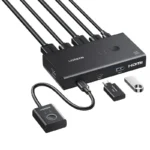
The UGREEN AK500 KVM Switch is designed to help two computers share two HDMI monitors and compatible USB peripherals. Once everything is connected, you can switch the shared workstation between computers using the switch’s physical button or its wired desktop controller. Both monitors follow the selected computer, so you do not have to change each display connection separately.
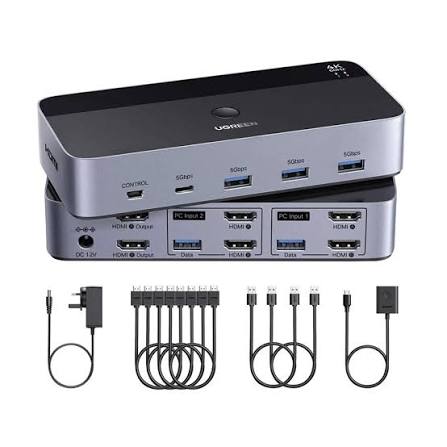
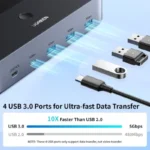
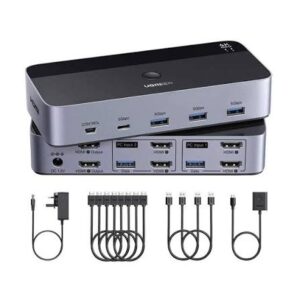
Think of it as a central control point for your workstation. Instead of maintaining separate keyboards, mice, and USB accessories for each computer, you can connect compatible peripherals to the KVM switch and use them with whichever computer is selected. Its four USB 3.0 ports consist of three USB-A ports and one USB-C port, with data transfer speeds of up to 5Gbps under supported conditions.
The switch supports video resolutions up to 4K@60Hz and offers extended or mirrored display modes when the selected computer supports the required dual-display configuration. It is suitable for compatible home offices, professional workstations, and other environments where two computers share one dual-monitor setup.
One important point: each computer needs two independent HDMI-compatible video outputs and one USB data connection for full dual-monitor and peripheral-switching functionality. The AK500 does not independently create a second video output for a computer that lacks one.
Key Features
🖥️ 1. Two Computers and Two Monitors
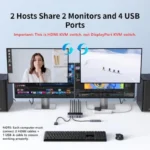
The AK500 lets two computers share two HDMI monitors through a single KVM system. When you switch computers, both displays change to the selected computer’s video output.
This setup is useful for professionals who alternate between two systems but want to keep the same monitors in place. Both screens follow one selected computer rather than displaying separate computers simultaneously.
✨ 2. 4K@60Hz Video Support
The KVM switch supports resolutions up to 4K at 60Hz when the source computers, displays, and HDMI cables are compatible. This provides detailed visuals for productivity, supported multimedia content, and everyday professional work.
Other supported resolutions depend on the connected equipment. For the best results, make sure the entire connection supports your desired display settings.
🔄 3. Extended and Mirrored Display Modes
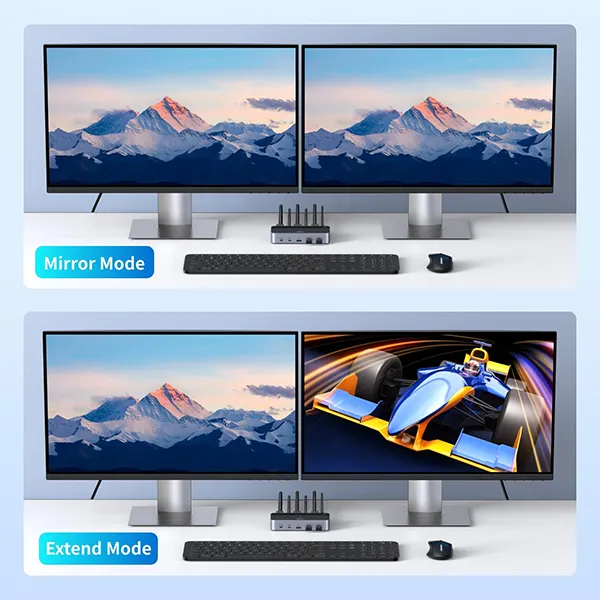
The AK500 supports extended and mirrored display configurations. Extended mode lets a compatible computer use the two monitors as separate workspaces, while mirrored mode displays the same content on both screens.
These modes depend on the selected computer’s graphics capabilities and operating system. The KVM switch routes the computer’s two video outputs; it does not generate independent video signals on its own.
⌨️ 4. Four USB 3.0 Ports
The switch provides three USB-A ports and one USB-C port for sharing compatible peripherals between the two computers. You can connect devices such as keyboards, mice, printers, webcams, and USB storage devices.
USB 3.0 supports data transfer rates of up to 5Gbps under suitable conditions. Actual speeds depend on the connected device, host connection, and workload.
🎛️ 5. Physical Button and Wired Controller
The AK500 offers two convenient switching methods: a button on the main unit and a wired desktop controller. The controller lets you place the switching control within easy reach rather than reaching behind your computer or monitor.
The model does not support keyboard hotkey switching, so use the provided physical controls to change computers.
🔌 6. Powered Operation
The KVM switch requires an external power supply for normal operation, particularly when sharing USB peripherals. Use the supplied or manufacturer-approved adapter that matches the device’s specified power requirements.
Proper power and secure connections help the switch operate as intended. Check the product documentation before connecting a replacement adapter.
🛡️ 7. HDMI 2.0 and HDCP Support
The AK500 is listed with HDMI 2.0 support and HDCP 2.2 compatibility, with HDCP 1.4 support also listed for compatible content and equipment. HDR support is available in suitable configurations.
Actual video and content-protection performance depends on the source device, monitors, cables, and the formats supported by the complete setup.
💼 8. Plug-and-Play Setup
The KVM is designed to work without dedicated driver installation. After connecting the computers, monitors, USB peripherals, and power supply, you can select the active computer using the available controls.
Although no special driver is normally required, correct cabling and compatible computer video outputs are essential for full dual-monitor functionality.
Benefits You’ll Enjoy
-
✔️ A cleaner workspace: Reduce the need for duplicate keyboards, mice, and other shared peripherals.
-
✔️ More convenient multitasking: Move between two computers without manually reconnecting your workstation.
-
✔️ A productive dual-monitor setup: Use two displays with the selected computer when its hardware supports both screens.
-
✔️ Simplified peripheral management: Share compatible USB accessories through one central device.
-
✔️ Premium 4K viewing support: Enjoy compatible video output up to 4K@60Hz.
-
✔️ Better desk organization: Keep your shared computer accessories connected in one place.
-
✔️ Flexible display arrangements: Choose extended or mirrored modes supported by your computer.
-
✔️ Convenient switching: Use the main button or wired controller to change the active computer.
-
✔️ More efficient daily routines: Spend less time moving cables and more time working.
-
✔️ A practical office upgrade: Make a dual-computer workstation easier to manage without duplicating every peripheral.
Perfect For
-
🏠 Home offices: Share monitors and peripherals between work and personal computers.
-
💼 Office professionals: Switch between two compatible business computers.
-
👨💻 Programmers and developers: Use a dual-monitor workspace across two systems.
-
🎨 Designers: Switch a compatible dual-screen workstation between computers.
-
🎬 Video editors: Share monitors and USB accessories between supported editing systems.
-
📊 Data analysts: Manage two computers using the same display and peripheral setup.
-
🏢 Business workstations: Reduce duplicate accessories on shared desks.
-
🎓 Students: Switch between two compatible computers for study and projects.
-
🧑💻 IT professionals: Manage two systems from a shared workstation.
-
🖨️ Peripheral-heavy setups: Share supported printers, keyboards, mice, and USB storage devices.
Why Choose the UGREEN AK500 KVM Switch?
The UGREEN AK500 is a practical option for people who regularly use two computers but prefer a single dual-monitor workstation. By combining display switching and USB peripheral sharing, it reduces the inconvenience of reconnecting several devices whenever you move between computers.
Its dual-monitor support is especially useful for compatible computers that can output two independent HDMI video signals. You can configure the displays for extended desktop work or mirroring, depending on your needs and the capabilities of the active computer. The 4K@60Hz specification also makes it suitable for compatible high-resolution displays.
The four USB 3.0 ports add flexibility by allowing compatible peripherals to be shared between the two systems. This can be useful when you want to use one keyboard, mouse, printer, or other USB device with either computer. The physical button and wired desktop controller provide straightforward switching options without relying on software or keyboard shortcuts.
The powered design helps support the switch’s operation, while its plug-and-play approach makes setup easier for users who do not want to install dedicated drivers. However, cable selection, correct power, and computer compatibility remain important for reliable operation.
Before buying, confirm that both computers can drive two external monitors independently and have the necessary connections. A computer with only one video output will not gain a second independent display simply by connecting it to this KVM. If your laptop uses USB-C or DisplayPort for video, you may need a compatible adapter or docking solution, provided the laptop supports the required displays.
UGREEN AK500 KVM Switch vs Ordinary Dual-Computer Setup
| Feature | UGREEN AK500 KVM Switch | Separate Computer Setups |
|---|---|---|
| Computers supported | ✅ 2 | ✅ 2 |
| Monitors shared | ✅ 2 | Depends on each setup |
| Shared keyboard and mouse | ✅ Yes | ⚠️ Usually requires separate peripherals or manual switching |
| Shared USB accessories | ✅ 4 USB ports | Depends on the setup |
| Maximum specified video mode | 4K@60Hz | Depends on the equipment |
| Extended display mode | ✅ Supported with compatible computers | ✅ With compatible computers |
| Mirrored display mode | ✅ Supported | Depends on computer settings |
| Physical switching button | ✅ Yes | Not applicable |
| Wired desktop controller | ✅ Included in the documented package | Not applicable |
| Separate power supply | Required | Depends on the equipment |
| Keyboard hotkey switching | ❌ Not supported | Depends on other hardware or software |
Note: An ordinary setup can provide the same capabilities with suitable hardware. The AK500’s main advantage is centralizing computer, monitor, and USB peripheral switching.
Dual-Monitor Setup and Computer Compatibility
The most important consideration when using the UGREEN AK500 is the way each computer connects to the switch. Each system needs two independent HDMI-compatible video outputs, plus a USB data connection for sharing the keyboard, mouse, and other USB peripherals.
If a laptop has only one HDMI output, it may need a compatible USB-C video adapter or docking station to provide a second independent display signal. The laptop’s hardware and operating system must also support two external displays. A basic HDMI splitter will not create a second independent desktop.
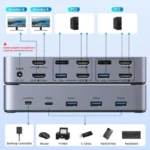
When connecting the monitors, keep each computer’s two HDMI video connections aligned with the corresponding inputs on the KVM. Connect the USB host cable from each computer as directed, then attach the keyboard, mouse, and other peripherals to the KVM’s USB ports.
Once the setup is complete, both monitors and shared USB devices follow the selected computer. This means you cannot use one monitor for Computer 1 and the other for Computer 2 at the same time through this KVM.
How to Use the UGREEN AK500 KVM Switch
Step 1: Check Computer Compatibility
Confirm that each computer supports two independent external displays and has two suitable HDMI-compatible video outputs. Each computer also needs a USB data connection for the shared peripherals.
Step 2: Connect the First Computer
Use two HDMI cables to connect the first computer’s video outputs to its corresponding KVM inputs. Connect the computer’s USB host cable to the designated USB connection on the KVM.
Step 3: Connect the Second Computer
Repeat the same process for the second computer, using its two video connections and USB host cable.
Step 4: Connect Both Monitors
Connect the KVM’s two HDMI outputs to the corresponding HDMI inputs on your monitors. Ensure that the monitor cables are securely attached.
Step 5: Connect Your USB Accessories
Plug your keyboard, mouse, and other compatible USB peripherals into the KVM’s downstream USB ports. Connect the supplied power adapter according to the product instructions.
Step 6: Switch Between Computers
Turn on the computers and monitors, select the correct monitor inputs if necessary, and use the KVM’s physical button or wired desktop controller to choose the active computer. Configure extended or mirrored display mode in the selected computer’s display settings.
Important Usage Tips
Before connecting the KVM, verify that both computers support dual-monitor output. Two physical ports do not always guarantee that a computer can drive two independent external displays. This is especially important with laptops, USB-C adapters, and docking stations.
Use suitable HDMI cables and keep the output cables within the length recommended by the manufacturer. For 4K@60Hz, the computers, monitors, and cables must all support that mode. Connect the required power adapter and check the product documentation if USB peripherals behave inconsistently.
Remember that the AK500 switches both monitors and the shared USB devices together between computers. It does not function as a video matrix, so it cannot display one computer on one monitor and the other computer on the second monitor simultaneously. Keyboard hotkey switching is not supported; use the physical button or wired controller.
Product Specifications
| Feature | Details |
|---|---|
| Brand | UGREEN |
| Product Name | UGREEN AK500 2 Monitor 2 Computer HDMI KVM Switch |
| Model | AK500 |
| Part Number | 55455, as listed for this model |
| Product Type | Dual-monitor HDMI KVM switch |
| Computers Supported | 2 |
| Monitors Supported | 2 HDMI monitors |
| HDMI Video Inputs | 4 total, 2 per computer |
| HDMI Video Outputs | 2 |
| Maximum Listed Resolution | 4K@60Hz |
| HDMI Standard | HDMI 2.0 |
| HDCP | HDCP 2.2 / 1.4 support listed |
| HDR | Supported with compatible equipment |
| USB Ports | 3 × USB-A and 1 × USB-C |
| USB Data Speed | Up to 5Gbps |
| Display Modes | Extended and mirrored, subject to computer support |
| Switching Methods | Physical button and wired desktop controller |
| Keyboard Hotkeys | Not supported |
| Power Supply | External adapter; verify the supplied adapter’s rating |
| Operating System Compatibility | Windows, macOS, and Linux, subject to hardware and display support |
| Housing Material | Metal/aluminum listed for this model |
| Dimensions | Approximately 157 × 72 × 30 mm |
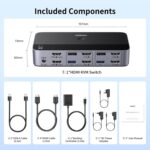
| Package Contents | KVM switch, HDMI cables, USB host cables, wired controller, power adapter, and user guide; verify exact package contents |
| Warranty | Please check the AIYOZON product listing for the applicable warranty. |
Why Buy from AIYOZON?
At AIYOZON, you can explore practical computer accessories designed to make your work setup more organized and convenient. The UGREEN AK500 KVM Switch is a useful option for customers in Bangladesh who want to share two monitors and compatible USB peripherals between two computers.
Before ordering, check the video outputs available on both computers, the resolution supported by your monitors, and the required cables. If you need assistance selecting the right KVM solution, review the product details or contact AIYOZON for help with your intended setup.
AIYOZON aims to make online shopping convenient by offering useful technology accessories and support for product-related questions.
-
✅ Quality Products
-
🚚 Fast Delivery Across Bangladesh
-
📦 Secure Packaging
-
💬 Responsive Customer Support
-
⭐ Convenient Online Shopping
-
💯 Great Value for Money
Frequently Asked Questions
Q1. What does the UGREEN AK500 KVM Switch do?
The UGREEN AK500 lets two computers share two HDMI monitors and compatible USB peripherals. You can switch the entire shared workstation between computers using the physical button or wired desktop controller.
Q2. Does the UGREEN AK500 support 4K@60Hz?
Yes, the model is listed as supporting up to 4K@60Hz. The computers, monitors, HDMI cables, and connection settings must all support the required resolution and refresh rate.
Q3. Can I use one keyboard and mouse with both computers?
Yes. Connect compatible USB peripherals to the KVM’s downstream USB ports. The shared peripherals follow whichever computer is selected.
Q4. Can the two monitors display different computers at the same time?
No. Both monitors follow the selected computer. You can use extended or mirrored display mode on that computer if its hardware and operating system support the desired configuration.
Q5. Will the AK500 work with my laptop?
It can work with compatible laptops that support two independent external displays. Each laptop must provide two suitable HDMI-compatible video signals and a USB data connection. If your laptop has limited ports, a compatible dock or adapter may be required.
Q6. Does the KVM require drivers or external power?
It is designed for plug-and-play operation without dedicated driver installation. It does require an external power supply; use the appropriate adapter specified for the exact unit.
Q7. Can I switch computers using keyboard shortcuts?
No. Keyboard hotkey switching is not supported on this model. You can switch between the two computers using the physical button or the wired desktop controller.
Q8. How long does delivery take from AIYOZON?
The standard delivery estimates are:
-
Inside Dhaka: 24–48 Hours
-
Outside Dhaka: 2–3 Business Days
Delivery times may vary depending on your location and order circumstances. Check the AIYOZON checkout or delivery policy for the latest details.
Upgrade Your Workspace with Smarter Dual-Computer Control
The UGREEN AK500 KVM Switch is a practical choice for users who want to operate two compatible computers through a shared dual-monitor workstation. Its support for 4K@60Hz video, four USB 3.0 ports, extended and mirrored display modes, and convenient switching controls can help simplify daily work.
Whether you manage separate work and personal computers, develop software, edit content, or handle professional office tasks, the AK500 can reduce cable swapping and make your workstation easier to organize. Its main benefit is bringing your monitors and compatible USB accessories together under one switching system.
Before ordering, confirm that both computers support two independent HDMI-compatible video outputs and that your monitors and cables meet the required specifications.











Reviews
There are no reviews yet.